
The digital broadcasting ecosystem has completely transformed how viewers consume media. As the industry moves away from traditional cable and satellite infrastructure, the reliance on high-performance internet protocols has become absolute. For end-users, the quality of this transition depends heavily on the software they use to decode and organize their media feeds. Among the premium software options available today, the IPTV Stream Player application stands out as a highly versatile, cross-platform media engine.
Whether you are configuring a home entertainment system on an Android TV box or setting up a mobile viewing environment on an iOS device, understanding how to properly deploy this software is essential. This comprehensive technical guide explores the architecture of IPTV Stream Player, its core functionalities, exact installation protocols across multiple hardware ecosystems, and advanced optimization techniques to guarantee a buffer-free viewing experience.
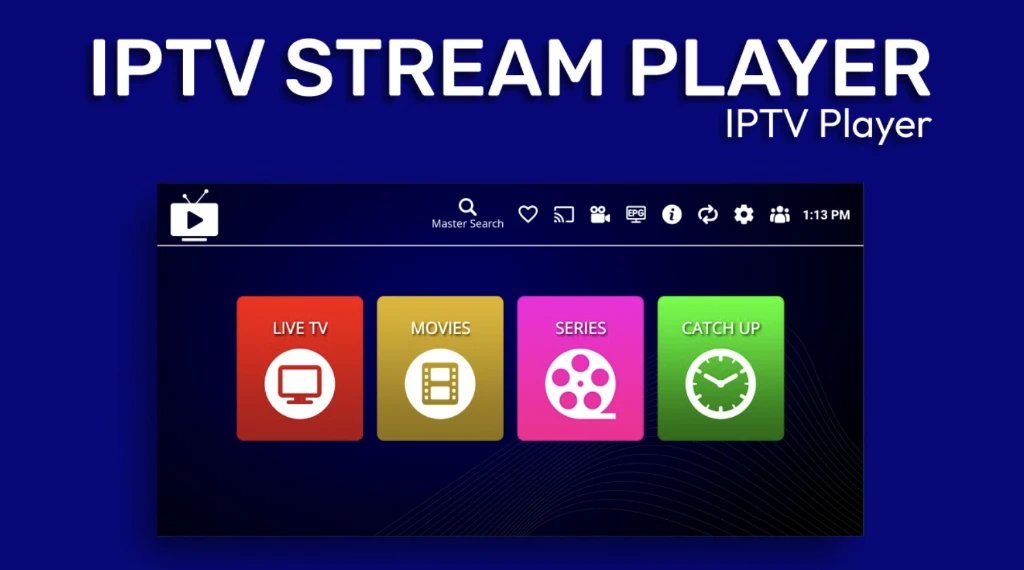
Understanding IPTV Stream Player Architecture
It is a common misconception that media player applications provide their own content. IPTV Stream Player is strictly a software client—a blank, high-performance decoding engine. It does not host, distribute, or sell any live television channels, movies, or series.
Its primary function is to act as a bridge between the user’s hardware and a third-party media server. The application takes complex, raw data feeds (typically provided by a server administrator) and translates them into a highly intuitive, graphical user interface (GUI). By separating the decoding software from the media hosting itself, the developers have engineered an application focused entirely on speed, minimal memory consumption, and advanced video codec compatibility.
Core Technical Capabilities and Features
The application is engineered to handle massive data loads efficiently, parsing playlists that frequently contain tens of thousands of video-on-demand (VOD) titles and live broadcast streams.
- Dynamic Codec Integration: Modern streaming relies on heavy video compression to deliver high-definition content over standard broadband. IPTV Stream Player natively supports advanced video coding formats, including H.264, H.265 (HEVC), and VP9. This ensures the software can decode highly compressed 4K and 1080p live streams without dropping frames or overloading the device’s processor.
- Xtream Codes API Native Support: While the app supports traditional M3U playlist URLs, it is heavily optimized for the Xtream Codes API. This allows the application to query the server database dynamically rather than downloading a massive static text file, drastically reducing load times and preventing memory crashes on low-RAM devices.
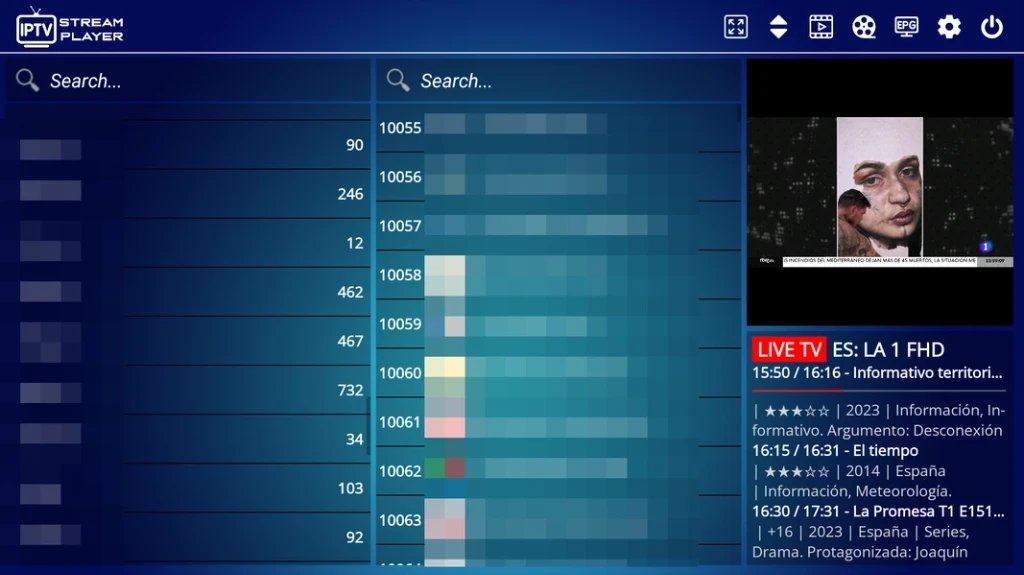
- Integrated Electronic Program Guide (EPG): The software automatically parses XMLTV data provided by the server. It overlays this data onto a clean, grid-based TV guide, allowing users to track current and upcoming broadcasts seamlessly.
- Advanced Parental Controls: The application features a robust security layer. Users can lock specific live channels, entire geographic categories, or adult VOD sections using a custom numerical PIN, ensuring a safe viewing environment on shared household devices.
- Multi-Screen Viewing: For sports enthusiasts or news monitors, the application supports picture-in-picture and multi-screen grid layouts, allowing the simultaneous decoding of up to four distinct live streams on compatible, high-performance hardware.
Application Ecosystems: Where Does It Fit?
While IPTV Stream Player is a powerful standalone option, it is part of a broader ecosystem of high-performance media clients. Depending on the exact hardware deployed, server administrators and end-users often utilize a combination of top-tier applications to ensure stability.
For example, while IPTV Stream Player is exceptional for mobile and desktop environments, many dedicated Android TV and Firestick users also run parallel, highly stable applications like IBO Player and XC IPTV. These alternatives are frequently deployed alongside IPTV Stream Player because they offer similar, deeply integrated Xtream Codes API support, ensuring that if one application requires a software update, the user always has a high-performance backup ready to launch.
Step-by-Step Installation Protocols
Because the application is cross-platform, the installation process varies significantly depending on the operating system of your chosen device.
1. Installing on Apple Devices (iOS, iPadOS, macOS)
Apple maintains a highly regulated App Store, but IPTV Stream Player is fully vetted and available for direct download, making deployment on Apple hardware incredibly streamlined. Note: If you are setting up a desktop environment, check out our comprehensive macOS IPTV Guide for further optimization.
- Open the App Store on your iPhone, iPad, or Mac (ensure you are using an Apple Silicon Mac if downloading the mobile variant).
- Navigate to the search bar and input IPTV Stream Player.
- Locate the official application and tap Get or the download cloud icon.
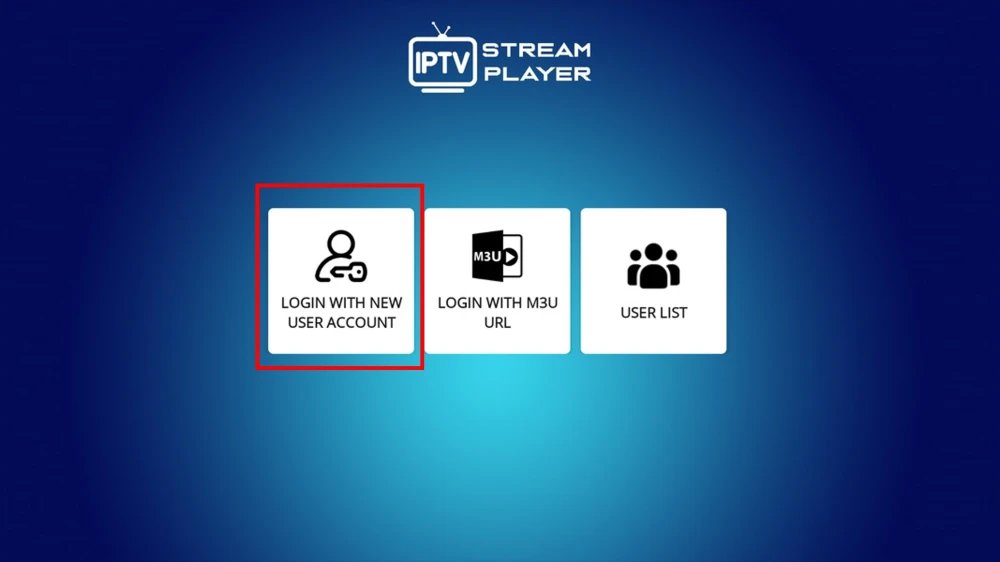
- Once installed, launch the application. You will immediately be presented with the login configuration screen.
2. Sideloading on Amazon Fire TV Stick
Because Amazon frequently curates its native app store, premium media players often require manual sideloading using the Downloader utility.
- Navigate to the Firestick Home Screen, select Find, and search for the Downloader application. Install it.
- Press the home button, navigate to Settings > My Fire TV > Developer Options.
- Click Install Unknown Apps and turn the permission ON for the Downloader application. (Note: If Developer Options are hidden, go to “About” and click your device name 7 times rapidly to unhide it).
- Launch Downloader and enter the direct APK download URL provided by the application’s official website.
- Click Go. Once the APK file downloads, follow the on-screen prompts to click Install.
- After installation, delete the raw APK file to free up the Firestick’s limited internal storage.
3. Installing on Standard Android TV Boxes
For devices running the native Android TV operating system (such as the Nvidia Shield or certified generic boxes), the process is straightforward.
- Open the Google Play Store from your device’s home screen.
- Search for IPTV Stream Player.
- Select the app and click Install.
- The Android OS will automatically handle the background installation and place the application icon in your app drawer.
Configuring the Application and Adding Credentials
Once the software is installed, you must link it to your designated media server. To ensure the fastest loading times and a stable EPG, it is highly recommended to use the Xtream Codes login method rather than a static M3U link. We recommend starting with an IPTV Free Trial to test your connection.
- Open the IPTV Stream Player application.
- On the primary launch screen, select the option labeled Login with Xtream Codes API (or Login with New User Account).
- You will be presented with an entry form. Input the data exactly as provided by your server administrator:
- Playlist Name: This is a custom identifier. You can name it anything (e.g., “Main Server”).
- Username: Enter your assigned username. This is highly case-sensitive.
- Password: Enter your assigned password.
- Server URL: Enter the complete portal address. You must include the http:// or https:// prefix and the exact port number (e.g.,
http://server-address.com:8080).
- Click Add User or Login.
- The application will ping the server to authenticate your credentials. Once verified, it will begin downloading the category headers for your Live TV, Movies, and Series.
Technical Note on Playlist Organization: If your server provides a massive global playlist, the application allows you to utilize a “Favorites” system or hide irrelevant categories. For instance, if you are strictly targeting localized European content, you can easily filter the interface to prioritize your Spanish, Belgian, or UK channel categories at the very top of your list, hiding other international categories to speed up the app’s navigation and reduce memory consumption.
Advanced Optimization and Troubleshooting
Even with premium software like IPTV Stream Player, the viewing experience is only as strong as the network it runs on. To prevent buffering, audio desynchronization, or app crashes, implement the following technical optimizations.
Resolving Playback Buffering
Buffering is almost never a flaw in the application’s code. It is a symptom of data packet loss between the server and your device.
- Hardwire the Connection: Wi-Fi bands (especially 2.4GHz) are prone to severe interference. Always connect your primary streaming device directly to your router using a Cat6 Ethernet cable.
- Clear the App Cache: As you navigate massive VOD libraries, the app downloads thousands of thumbnail images. On devices with limited storage (like a 4GB Firestick), a full cache will cause the app to stutter and crash. Navigate to your device’s global settings, find the IPTV Stream Player in the application list, and execute a Clear Cache command.
EPG Synchronization Failures
If your TV guide says “No Information” across all channels, the app has failed to pull the XMLTV data.
- Open the application settings and navigate to the EPG/TV Guide section.
- Click Force Update EPG or Refresh Guide.
If the issue persists, ensure that your device’s system time and timezone settings are perfectly accurate. The EPG relies on strict timecode synchronization; if your device clock is off by even five minutes, the guide data will fail to map correctly to the broadcast streams.
Frequently Asked Questions (FAQ)
Does IPTV Stream Player require a paid subscription?
The application itself is generally free to download and use. However, some developers offer a “Pro” version via an in-app purchase that removes banner advertisements or unlocks advanced features like multi-screen viewing. You must still pay your independent service provider for the actual media access.
Can I use IPTV Stream Player to watch Catch-up TV?
Yes. If your server administrator supports server-side recording (Catch-up), the application natively supports it. Channels with Catch-up enabled will typically display a small clock icon next to their name in the channel list, allowing you to view broadcasts from the previous 48 to 72 hours.
How do I transfer my IPTV Stream Player setup to a new device?
There is no cloud-sync feature for your credentials. If you purchase a new television or streaming box, you must download the application from scratch and manually re-enter your Xtream Codes API username, password, and server URL onto the new hardware.
Why is there no audio on certain VOD movies?
This occurs when the movie file utilizes an audio codec (like Dolby Digital Plus / EAC3) that your television or soundbar cannot natively decode. To fix this within the app, navigate to the internal player settings and change the media engine to “Hardware Decoder” or “Software Decoder” to force the application to process the audio track internally.
Ready to Upgrade Your Streaming?
Stop missing your favorite live events and VODs. Get instant, anti-freeze access to Neo IPTV UK's premium library right now.