
Navigating the world of digital media players requires software that is fast, reliable, and capable of handling massive libraries of high-definition content without lagging. For users looking to manage their own media playlists, the IBO Player app has emerged as one of the most powerful and widely utilized media players on the market, often compared favorably against Smarters Pro and TiviMate.
This comprehensive guide covers everything you need to know about the IBO Player, including its core technical capabilities, device compatibility, step-by-step installation instructions for various platforms, and exactly how to load your custom M3U playlists via the administrative web portal.
What is the IBO Player App?
The IBO Player is a premium, cross-platform media player application designed to decode and play custom media playlists provided by the end-user. It is essential to clarify that the IBO Player is purely a software shell. It does not host, sell, or provide any live television channels, movies, or series. Instead, it acts as a highly optimized playback engine that reads M3U URLs or Xtream Codes API details and organizes that data into a clean, modern, and easily navigable user interface.
By separating the media player software from the media hosting itself, the developers of the IBO Player have focused entirely on performance. The application is built to quickly parse massive playlists—sometimes containing tens of thousands of video-on-demand (VOD) titles and live channels—without draining device memory or causing the operating system to crash.
Core Technical Features and Capabilities
The popularity of the IBO Player app stems from its robust feature set, which is designed to provide a premium viewing experience similar to major commercial streaming platforms.
Advanced Video Codec Support
Modern streaming relies on heavy video compression to deliver 4K and 1080p content over standard internet connections. The IBO Player natively supports high-efficiency video coding, including H.265 (HEVC), H.264, VP9, and AV1. This broad codec compatibility ensures that the player can decode heavily compressed video files smoothly, reducing hardware strain and minimizing buffering, even on lower-end Smart TV processors.
Dynamic User Interface and EPG Integration
The application features an intuitive, grid-based layout that categorizes content logically into Live TV, Movies, and Series. Furthermore, it boasts excellent Electronic Program Guide (EPG) integration. When an M3U playlist includes XMLTV data, the IBO Player seamlessly imports the schedule, providing users with a comprehensive TV guide interface that displays current and upcoming broadcasts.
Audio Track and Subtitle Selection
For international media or multi-language households, the application allows users to easily switch between multiple embedded audio tracks on the fly. Additionally, it supports a wide array of subtitle formats (such as SRT and VTT), allowing viewers to toggle subtitles on or off and customize their appearance directly from the playback menu.
Parental Controls and Content Security
Security is a priority for family households. The IBO Player includes built-in parental controls secured by a customizable PIN. This allows the primary account holder to lock specific channels, entire categories, or adult-oriented VOD libraries, ensuring that the interface remains safe for younger viewers.
Device Compatibility and Ecosystems
One of the strongest advantages of the IBO Player is its universal availability. Unlike some media players that are strictly confined to the Android ecosystem, the IBO Player has native applications across almost all major digital platforms:
- Smart TVs: Native apps available on Samsung Tizen OS and LG WebOS.
- Android OS: Fully compatible with Android smartphones, tablets, Android TV OS, and the Nvidia Shield.
- Fire TV OS: Operates flawlessly on all generations of the Amazon Fire TV Stick and Fire TV Cube.
- Apple Ecosystem: Available via the App Store for iOS (iPhone/iPad), tvOS (Apple TV), and macOS.
- Windows: Available for desktop environments via standard executable files or the Microsoft Store.
Step-by-Step Installation Guides
The installation process for the IBO Player app varies slightly depending on the hardware you are utilizing. Below are the exact steps to get the software running on the most popular platforms.
Installing on Samsung and LG Smart TVs
Because the application is officially vetted by major television manufacturers, the installation process on Samsung and LG devices is incredibly straightforward.
- Turn on your television and press the Home button on your remote.
- Navigate to the native App Store (LG Content Store or Samsung Apps).
- Use the search function and type IBO Player.
- Select the official application from the search results and click Install or Download.
- Once the installation is complete, launch the application to reveal your device’s unique MAC Address.
Installing on Amazon Firestick (Via Downloader)
Amazon frequently updates its official app store policies, meaning the IBO Player app sometimes needs to be sideloaded using the popular Downloader tool.
- From the Firestick home screen, navigate to Find > Search and type Downloader. Install the Downloader app.
- Press the home button, navigate to Settings > My Fire TV > Developer Options.
- Select Install Unknown Apps and turn the permission ON for the Downloader application.
- Open the Downloader app.
- In the URL/Search bar, enter the direct APK download link provided by the official IBO Player website (or your service provider’s specific shortcode).
- Click Go. The APK file will download. Once finished, click Install.
Installing on Apple Devices (iOS and Apple TV)
Apple users benefit from a highly streamlined process through the official App Store.
- Open the App Store on your iPhone, iPad, or Apple TV.
- Navigate to the search tab and enter IBO Player.
- Locate the official app and tap Get to authorize the download.
- Once installed, launch the application to access the MAC address required for setup.
How to Configure and Load an M3U Playlist
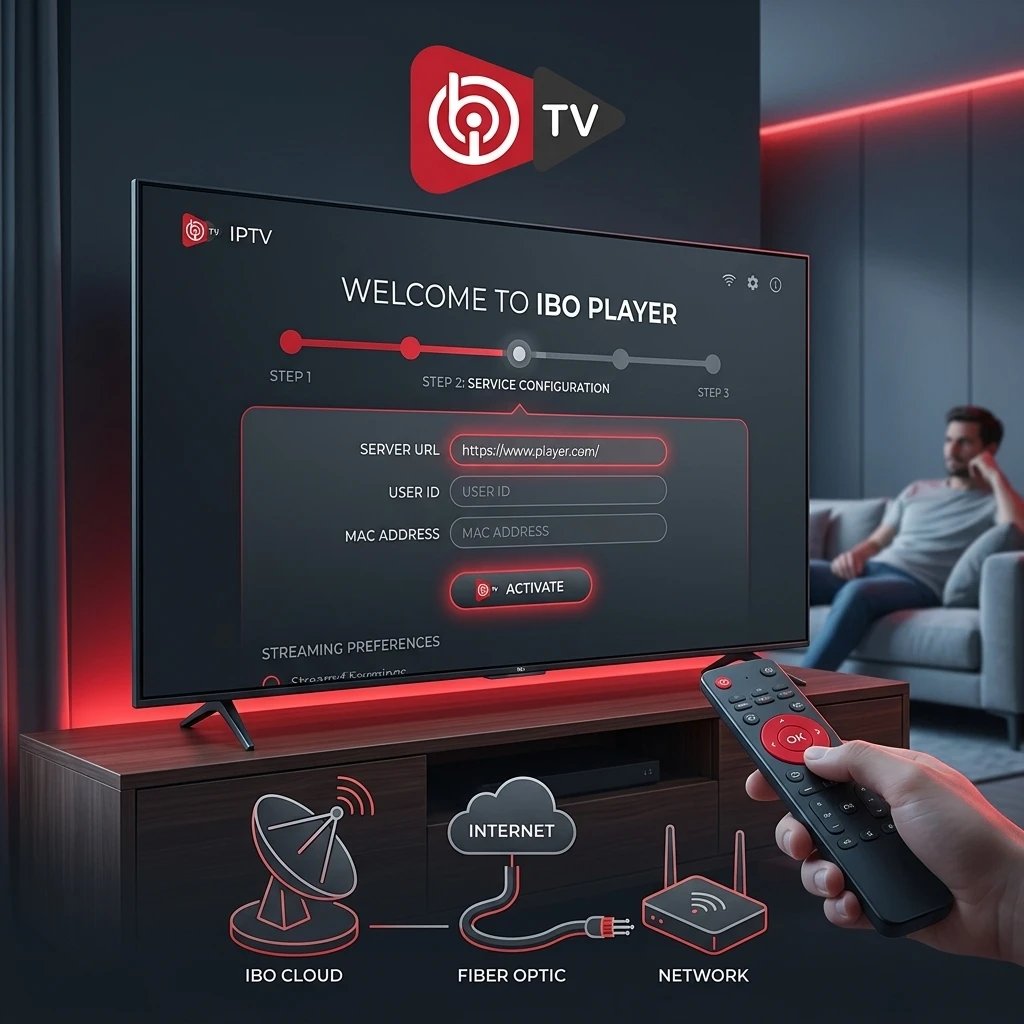
The IBO Player app does not allow you to manually type a massive M3U URL directly using a television remote control. Instead, the configuration is handled remotely via a secure web portal.
Step 1: Retrieve Your Device Credentials
Open the newly installed IBO Player on your television or streaming device. The launch screen will display two critical pieces of information: a MAC Address (formatted as 00:1A:2B:3C:4D:5E) and a Device Key. Keep this screen visible.
Step 2: Access the Web Portal
On a separate smartphone, tablet, or computer, open a web browser and navigate to the official IBO Player administrative website (typically located at cms.iboproapp.com or the specific URL listed on your TV screen).
Step 3: Login and Upload
- On the web portal login page, enter the exact MAC Address and Device Key displayed on your TV.
- Click Login.
- Once inside the dashboard, locate the option to Add Playlist.
- You will be presented with two primary methods for adding content:
- Add M3U Link: Paste the direct .m3u URL provided by your media source. Give the playlist a memorable name. We recommend trying an IPTV Free Trial to test your playlist connection.
- Add Xtream Codes: Input the specific Server URL, Username, and Password provided by your source.
- Click Save or Add Playlist.
Step 4: Refresh the Application
Return to your television or streaming device. Press the Reload or Refresh button on the IBO Player interface, or simply restart the application. The software will connect to the server, parse the playlist, and populate your screen with the categorized media.
Pricing Structure and Device Activation
The IBO Player is a premium software application, but it avoids the highly unpopular recurring monthly subscription model. Instead, it utilizes a one-time payment structure tied directly to the hardware.
When a user installs the application for the first time, they are granted a free trial period (typically lasting 7 days). This allows the user to upload their M3U playlist, test the video codec compatibility with their specific television, and evaluate the user interface completely risk-free.
Once the 7-day trial expires, the software will lock. To continue using the player, the user must pay a one-time activation fee. This payment permanently unlocks the application for that specific device.
Important Hardware Note: The activation license is permanently bound to the unique MAC address of the hardware. If you activate the IBO Player on a living room television, that license does not grant you access on a bedroom television or a mobile phone. Furthermore, if you purchase a brand new television to replace the old one, the MAC address changes, meaning you must purchase a new activation license for the new hardware.
Frequently Asked Questions (FAQ)
Does the IBO Player app include any movies or live channels?
No. The application is delivered completely empty. It is a standalone media player. Users must provide their own legal M3U playlists or Xtream Codes credentials to populate the application with content.
Why does the application say “Playlist Error” or fail to load my channels?
If the player cannot load the content, the issue is almost always with the playlist URL itself, not the IBO software. Ensure that the M3U link or Xtream Codes were typed into the web portal with absolute precision (case-sensitive). If the credentials are correct, the server hosting the media may be temporarily offline.
Can I transfer my IBO Player lifetime activation to a new device?
No. Device activations are strictly hardcoded to the hardware’s specific MAC address. Licenses are non-transferable between different devices, even if they are owned by the same user on the same network.
Why is my video stream buffering heavily?
The IBO Player app is simply decoding the video feed; it does not dictate the speed of the stream. Buffering is typically caused by a weak local Wi-Fi signal, internet service provider (ISP) throttling, or high latency on the server hosting the actual video file. For the best performance, always connect your streaming device directly to your internet router using a hardwired Ethernet cable.
How do I update the application to the latest version?
If you installed the application via an official digital storefront (like the Google Play Store, LG Content Store, or Apple App Store), the software will automatically update in the background based on your device’s global settings. If you sideloaded the app via Downloader on a Firestick, you may need to periodically re-download the latest APK file to overwrite the older version.
Ready to Upgrade Your Streaming?
Stop missing your favorite live events and VODs. Get instant, anti-freeze access to Neo IPTV UK's premium library right now.