
The hardware landscape for digital streaming has shifted dramatically over the past few years. For a long time, deploying a custom media setup required bulky, expensive set-top boxes. Today, ultra-compact HDMI dongles have the processing power to decode heavy video streams effortlessly. Among these devices, the Chromecast with Google TV (available in both HD and 4K variants) stands out as one of the most cost-effective and capable platforms for running Internet Protocol Television (IPTV).
Historically, older Chromecast devices (Generations 1 through 3, and the Ultra) functioned strictly as “cast receivers.” They required a secondary device, like a smartphone or tablet, to process the media app and push the video feed to the television. The modern Chromecast with Google TV, however, operates on a native Android TV operating system. It features its own onboard storage, processor, user interface, and remote control, allowing you to install and run robust media player applications directly on the hardware.
This comprehensive guide details the exact technical procedures required to install, configure, and optimize premium IPTV applications on a Chromecast with Google TV.
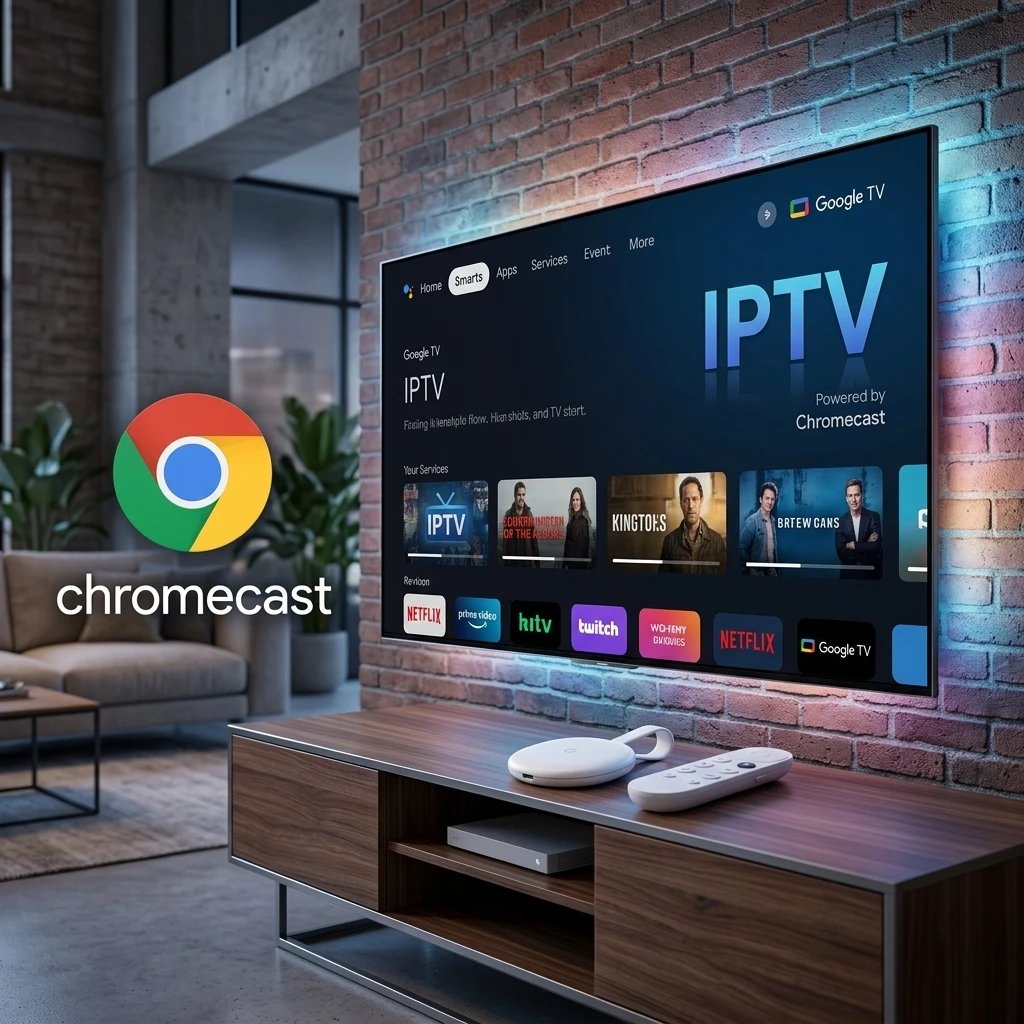
Hardware Architecture: Why Choose Chromecast for IPTV?
Before executing the software installation, it is important to understand the hardware capabilities of the Chromecast with Google TV.
The 4K version utilizes an Amlogic S905X3 processor paired with 2GB of RAM. While this memory allocation may seem small compared to desktop computers, the Android TV OS is heavily optimized. This hardware combination is fully capable of hardware decoding H.265 (HEVC) video streams natively. This means the device can process highly compressed 4K and 1080p live broadcasts without placing excessive thermal strain on the unit, preventing the micro-stutters and buffering commonly associated with older, low-end streaming sticks.
The primary limitation of the Chromecast is its internal storage. The device ships with 8GB of total storage, with only about 4.4GB available to the user after the operating system is accounted for. Consequently, you must be highly selective about the applications you install to prevent the device from crashing due to memory depletion.
Standardizing the Software: Recommended IPTV Applications
To guarantee a stable viewing experience, you must install media player software engineered for high performance. Avoid cluttered, outdated applications that suffer from memory leaks. For Chromecast deployments, two specific applications are universally recognized for their stability, modern user interfaces, and efficient parsing of massive M3U playlists:
- 8k vip+: This application offers a highly intuitive, premium graphical user interface. It is exceptionally user-friendly, categorizing Live TV, Movies, and Series into a clean grid that mimics commercial streaming platforms. It requires minimal configuration once installed.
- XC IPTV: Known for its lightweight footprint and exceptional stability, XC IPTV is built to interface flawlessly with the Xtream Codes API. It updates Electronic Program Guide (EPG) metadata swiftly in the background without locking up the user interface, making it ideal for devices with 2GB of RAM like the Chromecast. Alternatively, you can also check out our guides for Smarters Pro or TiviMate for Android TV devices.
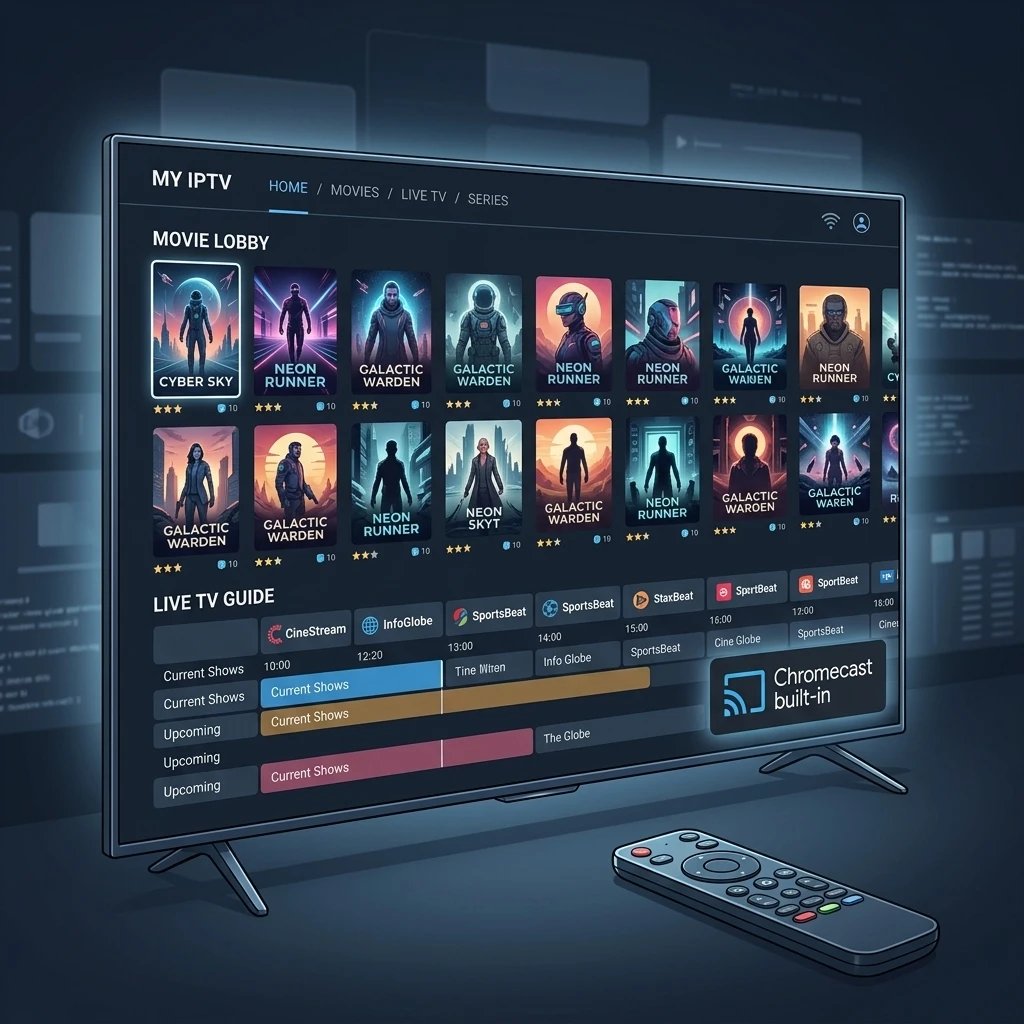
Step 1: Bypassing Security Restrictions (Developer Options)
Many premium IPTV players, including specific builds of XC IPTV and 8k vip+, are not always available directly through the official Google Play Store. To install these applications, you must “sideload” the Android Package Kits (APKs). Before the Chromecast allows this, you must unlock its Developer Options.
- Turn on your television and navigate to the Chromecast Home Screen.
- Scroll to the top right corner and select your Profile Icon.
- Navigate down and select Settings (the gear icon).
- Scroll down and click on System, then select About.
- Scroll down until you highlight the Android TV OS Build (or simply “Build”).
- Click the center selection button on your remote 7 times consecutively.
- A toast notification will appear at the bottom of the screen stating: “You are now a developer!”
Step 2: Installing the Downloader Application
To transfer the APK files from the internet onto your Chromecast’s internal storage, you require a bridge application. The industry standard tool for this process is called Downloader.
- Return to the Chromecast Home Screen.
- Navigate to the Apps tab or select the Search bar.
- Search for the app named Downloader (developed by AFTVnews) and click Install.
- Once the installation is complete, do not open it yet. Return to the main Settings menu.
- Navigate to Apps > Security & Restrictions > Unknown Sources.
- Find the Downloader application in the list and toggle the switch to the ON position. This grants Downloader the root permission required to install third-party software.
Step 3: Sideloading XC IPTV or 8k vip+
With security permissions granted, you can now pull the specific software onto the device.
- Open the Downloader application from your app list.
- Upon first launch, grant the app permission to access media and files on your device.
- Navigate to the URL/Search box in the center of the screen.
- Instead of typing a long, complicated URL, you can input a specific numeric shortcode provided by your service administrator or app developer.
- Enter the numeric code corresponding to XC IPTV or 8k vip+ and click Go.
- The Downloader app will connect to the server, automatically redirect to the file location, and begin downloading the APK file.
- Once the download reaches 100%, an installation prompt will appear. Click Install.
- After the installation finalizes, select Done (do not click Open).
- A prompt will appear asking if you want to delete the downloaded APK file. Click Delete, and then click Delete again to confirm. This is a critical step; it removes the installation file and frees up valuable storage space on your 8GB Chromecast.
Step 4: Configuring the IPTV Application
Now that your preferred software is installed, you must link it to your media server. We highly recommend testing your setup with an IPTV Free Trial before fully committing.
- Navigate to your Your Apps row on the Chromecast home screen. If the new app is not visible, select See All to find it.
- Launch XC IPTV or 8k vip+.
- You will be prompted to enter your login parameters. The most efficient method is using the Xtream Codes API.
- Enter the required details exactly as provided by your service:
- Any Name: (e.g., “My Server” or “Living Room”)
- Username: (Case-sensitive)
- Password: (Case-sensitive)
- Server URL / Portal: (Must include the http:// or https:// and the correct port number).
- Click Add User or Login.
- The application will authenticate with the master server, download your channel list, VOD library, and EPG data. This initial sync may take a few minutes depending on the size of the playlist.
Advanced Chromecast Performance Optimization
To ensure flawless playback of high-bitrate live streams, the physical and network environment of your Chromecast must be optimized.
1. Hardwiring the Network Connection
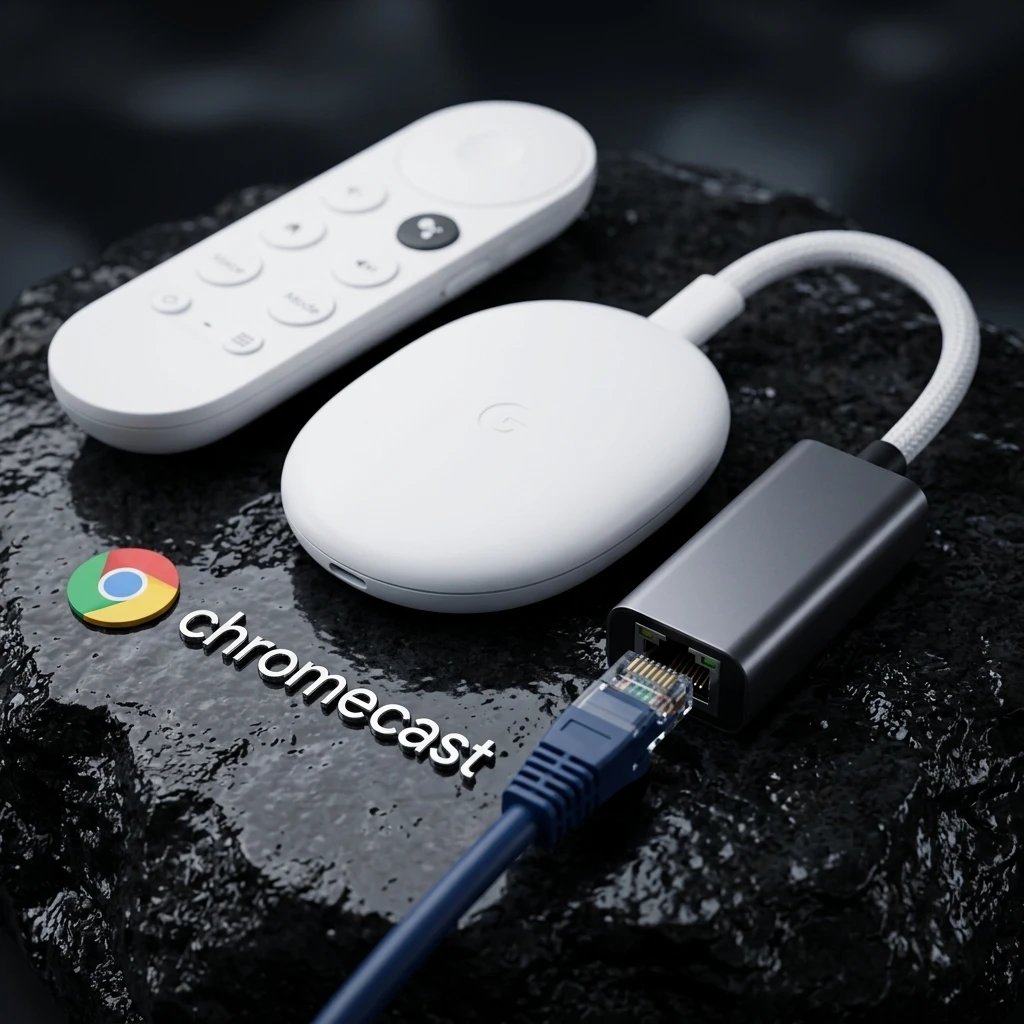
Wi-Fi signals are highly susceptible to interference from microwaves, Bluetooth devices, and neighboring networks, leading to packet loss and buffering. For the ultimate IPTV experience, bypass Wi-Fi entirely. Purchase a compatible USB-C Ethernet Hub or the official Google Ethernet Adapter for Chromecast. Connecting a physical Cat6 ethernet cable directly from your router to the Chromecast guarantees a stable, low-latency data stream.
2. Routine Cache Clearing
As you browse the EPG and load VOD posters, the IPTV application generates a massive cache of thumbnail images. On a device with limited storage, a bloated cache will eventually cause the app to crash to the home screen.
To prevent this: Navigate to Settings > Apps > See All Apps. Select your IPTV player (e.g., XC IPTV) and click Clear Cache. Perform this maintenance weekly to keep the software running smoothly.
3. Background Process Management
Android TV OS leaves applications suspended in the background when you press the home button. If you switch between Netflix, YouTube, and your IPTV player, the device’s 2GB of RAM will become saturated. Always back out of your IPTV application using the “Back” or “Exit” button to close the process completely before turning off the television.
Frequently Asked Questions (FAQ)
Can I install older Chromecast apps on the Chromecast with Google TV?
Yes, the modern Chromecast functions as both an Android TV device and a cast receiver. You can still use your smartphone to cast applications directly to the screen, just like older models.
Why is my stream buffering if my internet speed is over 500 Mbps?
Raw internet speed is different from network stability. Buffering on a high-speed connection is usually caused by ISP throttling during peak hours, high latency to the specific server hosting the video file, or packet loss over a crowded 2.4GHz Wi-Fi band. Switch to a 5GHz Wi-Fi band or utilize a hardwired ethernet adapter.
How do I update sideloaded applications?
Apps installed via the Google Play Store update automatically. However, apps sideloaded via Downloader do not. To update XC IPTV or 8k vip+, you must reopen the Downloader app, input the new numeric code or URL for the latest version, and install the new APK over the existing one. Your login credentials will remain intact.
Is it necessary to use a VPN on the Chromecast?
Using a Virtual Private Network (VPN) application—which can be downloaded directly from the Chromecast’s official Play Store—is highly recommended. It encrypts your data traffic, preventing internet service providers from identifying and artificially throttling your live streaming bandwidth.
Ready to Upgrade Your Streaming?
Stop missing your favorite live events and VODs. Get instant, anti-freeze access to Neo IPTV UK's premium library right now.