
In the landscape of digital media consumption, very few software applications offer the sheer power, flexibility, and customization capabilities of Kodi. Originally developed in 2002 as the Xbox Media Center (XBMC), the software has evolved into a fully-fledged, open-source media hub managed by the non-profit XBMC Foundation.
Unlike proprietary software tied to specific hardware ecosystems, Kodi is designed to be a universal media player. It serves as a unified front-end interface, capable of playing almost every known audio and video format, managing local network storage, and streaming content via an extensive ecosystem of community-developed add-ons.
This comprehensive guide details the core architecture of Kodi, exact installation procedures across various devices, repository management, and how to configure the software for advanced IPTV integration.

Understanding the Kodi Architecture
At its core, Kodi does not supply any media content. It is a blank canvas—a sophisticated software shell designed to aggregate and play content you provide. Its interface is specifically engineered for the “10-foot viewing experience,” meaning it is optimized to be displayed on large living room televisions and navigated using a standard remote control rather than a mouse and keyboard.
Kodi operates on a modular architecture. Its base installation provides the framework for video decoding, audio passthrough, and user interface rendering. Its true power, however, is unlocked through its file management system and metadata scrapers. When you point Kodi to a local folder containing video files (such as a Network Attached Storage or NAS drive), the software automatically scans the files, connects to internet databases (like TMDB or TVDB), and downloads high-resolution posters, plot summaries, and cast information, transforming a basic file list into a rich digital library.
Device Compatibility and Operating Systems
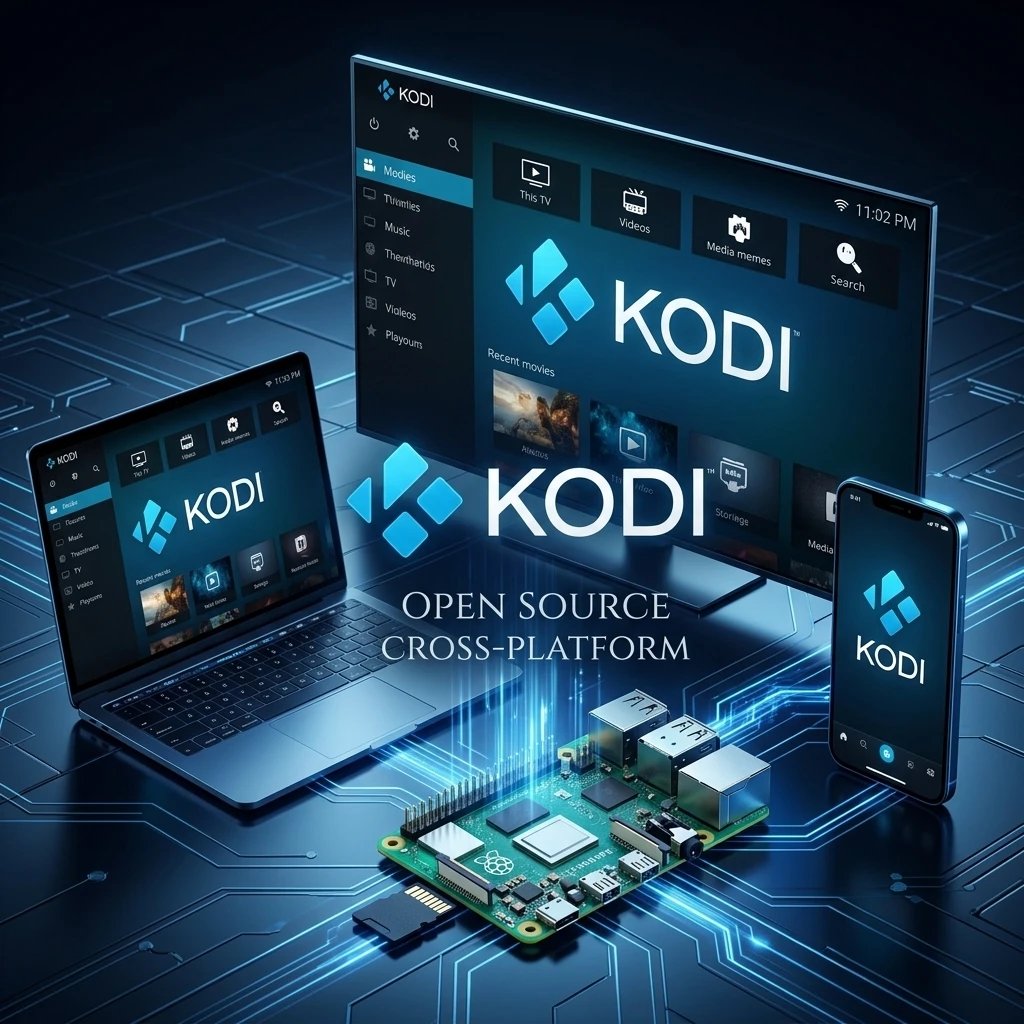
Because it is open-source and built on a highly adaptable codebase, Kodi is available across a massive array of hardware architectures and operating systems.
- Windows, macOS, and Linux: Kodi offers native executable files for all major desktop environments, functioning as a powerful desktop media center.
- Android OS and Android TV: Kodi is officially available via the Google Play Store, making it seamlessly compatible with Android smartphones, tablets, the Nvidia Shield, and standard Android set-top boxes.
- Amazon Fire TV OS: While not natively available in the Amazon Appstore, Kodi functions flawlessly on Firesticks and Fire TV Cubes when sideloaded.
- LibreELEC and CoreELEC: These are “Just enough OS” (JeOS) Linux distributions built explicitly to run Kodi. They are highly favored by enthusiasts running Kodi on low-power, single-board computers like the Raspberry Pi.
- iOS and tvOS: Installation on Apple devices is possible but requires sideloading via tools like Cydia Impactor or AltStore, as Apple restricts media players capable of running third-party code from the official App Store.
Step-by-Step Installation Guide
Installing Kodi is straightforward on open platforms, but requires specific sideloading techniques on closed ecosystems like the Amazon Firestick.
Installing Kodi on Windows or macOS
- Open a web browser and navigate to the official website: kodi.tv/download.
- Select your operating system (Windows or macOS).
- Download the 64-bit installer file.
- Run the executable and follow the standard installation wizard prompts.
(Note: Windows users can also install Kodi directly from the Microsoft Store for automated background updates).
Sideloading Kodi on Amazon Firestick
Because Amazon blocks Kodi from its official storefront, you must use the Downloader application to install the Android package (APK).
- Navigate to the Firestick Home Screen, select Find, and search for Downloader. Install the application.
- Go to Settings > My Fire TV > Developer Options.
- Enable Install Unknown Apps for the Downloader application. (If Developer Options are hidden, go to “About”, click on your device name 7 times rapidly to unlock it).
- Open the Downloader app and enter the official Kodi download URL: kodi.tv/download/android.
- Select the ARMV7A (32-bit) APK file. (Most Firesticks operate on a 32-bit architecture).
- Allow the file to download and click Install.
The Add-on Ecosystem: Repositories and ZIP Files
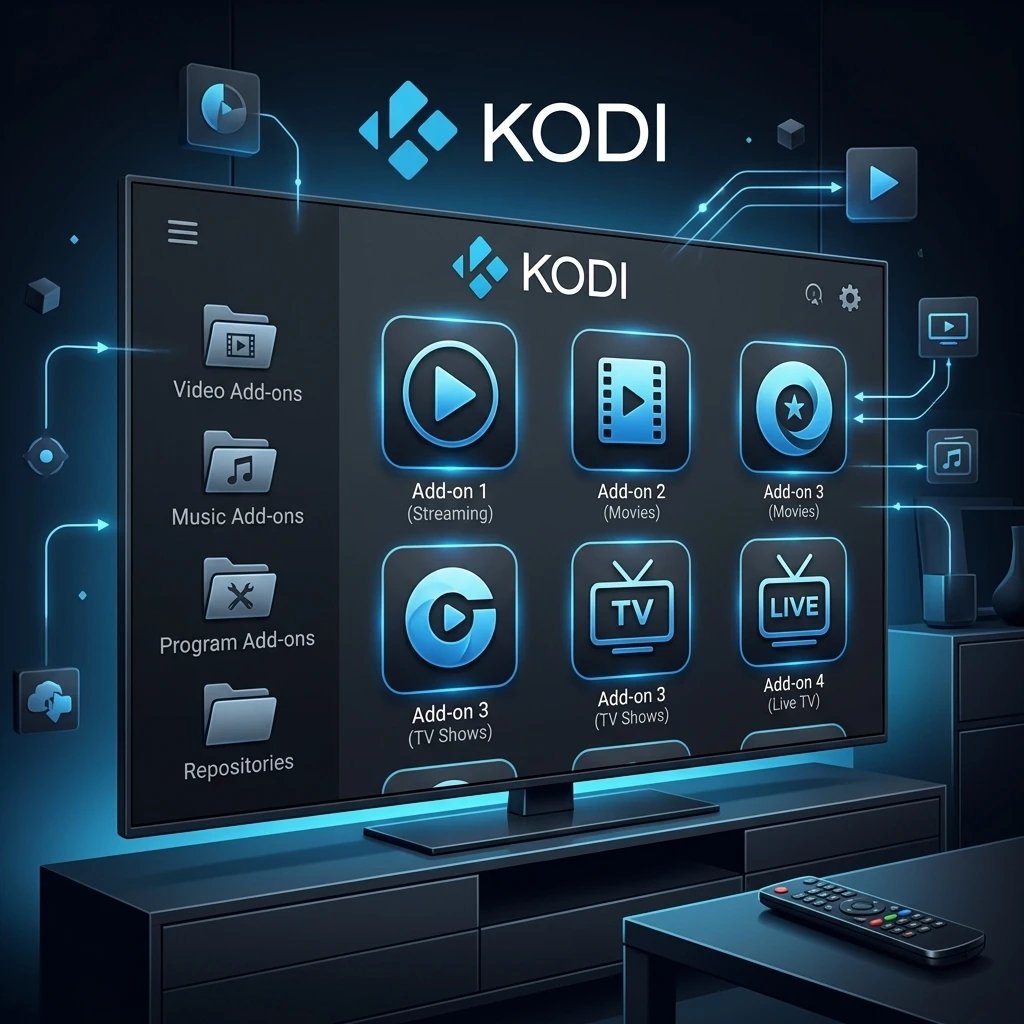
The defining feature of Kodi is its add-on ecosystem. Add-ons are small packages of code (typically written in Python) that instruct Kodi on how to scrape video files from external websites or servers.
To install third-party add-ons, you must understand the repository system:
- The Source URL: You must first add the web address of the repository file to Kodi’s File Manager.
- The ZIP File: You then install the repository onto your system via a .zip file downloaded from that Source URL.
- The Add-on: Finally, you open the installed repository and install the specific video or audio add-on you want.
To enable third-party add-ons:
Before you can install anything outside the official Kodi repository, you must alter the system settings.
- Navigate to Settings (the gear icon) > System > Add-ons.
- Toggle the switch for Unknown Sources to the ON position. Accept the warning prompt.
Configuring Kodi for IPTV: The PVR Simple Client
For users looking to integrate live television through an M3U playlist, Kodi offers a highly stable, native solution called the PVR IPTV Simple Client. Unlike standalone Android applications, integrating your IPTV service directly into Kodi allows you to utilize Kodi’s superior video decoding engine and custom interface skins. We highly recommend testing your setup with an IPTV Free Trial.
Step-by-Step IPTV Setup:
- Open Kodi and navigate to Add-ons.
- Click the open box icon at the top left (the Add-on Browser).
- Select Install from repository.
- Navigate to Kodi Add-on repository > PVR clients.
- Scroll down and select PVR IPTV Simple Client, then click Install.
- Once installed, click on the add-on again and select Configure.
- Under the General tab, set the Location to Remote Path (Internet Address).
- Click on M3U Play List URL and carefully type in the exact M3U link provided by your service provider.
- (Optional) Under the EPG Settings tab, input the XMLTV URL provided by your source to populate the TV guide.
- Click OK, restart Kodi, and navigate to the TV section on the main menu. Your live channels will now be populated.
Advanced Troubleshooting and Performance Optimization
While Kodi is highly stable, handling high-bitrate video streams or massive live TV playlists can occasionally cause performance issues.
Fixing Playback Buffering
If Kodi experiences constant buffering on high-speed networks, the issue is often related to how the software handles its video cache. By default, Kodi allocates a very small amount of device RAM to pre-load video files. You can manually increase this by creating an advancedsettings.xml file.
Using a maintenance add-on (like EZ Maintenance or OpenWizard), you can automatically generate an XML file that instructs Kodi to utilize a higher percentage of your device’s available RAM for the video cache, virtually eliminating micro-stutters during heavy 4K playback.
Clearing the Cache and Purging Packages
Over time, Kodi accumulates temporary files, thumbnail images, and outdated add-on installation packages. On devices with limited storage (like a 8GB Firestick), this can cause the system to crash. Navigate to your maintenance add-on or system settings and regularly perform a “Clear Cache” and “Delete Packages” command to free up local storage space and maintain a snappy user interface.
Frequently Asked Questions (FAQ)
Is Kodi legal to download and use?
Yes. Kodi is a 100% legal, open-source software application. It is no different than a web browser or the VLC media player. The legality of your Kodi experience depends entirely on the third-party add-ons you install and the copyright status of the content you choose to stream through them.
Do I need to use a VPN with Kodi?
Using a Virtual Private Network (VPN) is highly recommended when utilizing third-party add-ons or custom IPTV playlists. A VPN encrypts your network traffic, preventing Internet Service Providers (ISPs) from tracking your streaming habits or artificially throttling your bandwidth during peak viewing hours.
Why do my Kodi add-ons stop working?
Third-party add-ons are developed by independent hobbyists and rely on scraping links from external websites. If the layout of the target website changes, or if the repository hosting the add-on is taken offline, the add-on will break and fail to pull streams. This requires users to periodically update their add-ons or switch to new, actively maintained forks.
Can Kodi record live TV streams?
Kodi itself acts primarily as a frontend client. To record live television (DVR functionality), you must connect Kodi to a backend PVR (Personal Video Recorder) server, such as Tvheadend or NextPVR. The PVR IPTV Simple Client natively supports viewing, but recording requires the installation of these secondary backend services.
How do I update Kodi to the newest version?
Kodi does not possess a built-in auto-update feature across all platforms. If you installed it via the Google Play Store or Microsoft Store, the OS handles the updates. If you sideloaded it on an Android device (like a Firestick), you must manually download the newest APK file and install it over the existing version to retain your add-ons and customized settings.
Ready to Upgrade Your Streaming?
Stop missing your favorite live events and VODs. Get instant, anti-freeze access to Neo IPTV UK's premium library right now.