
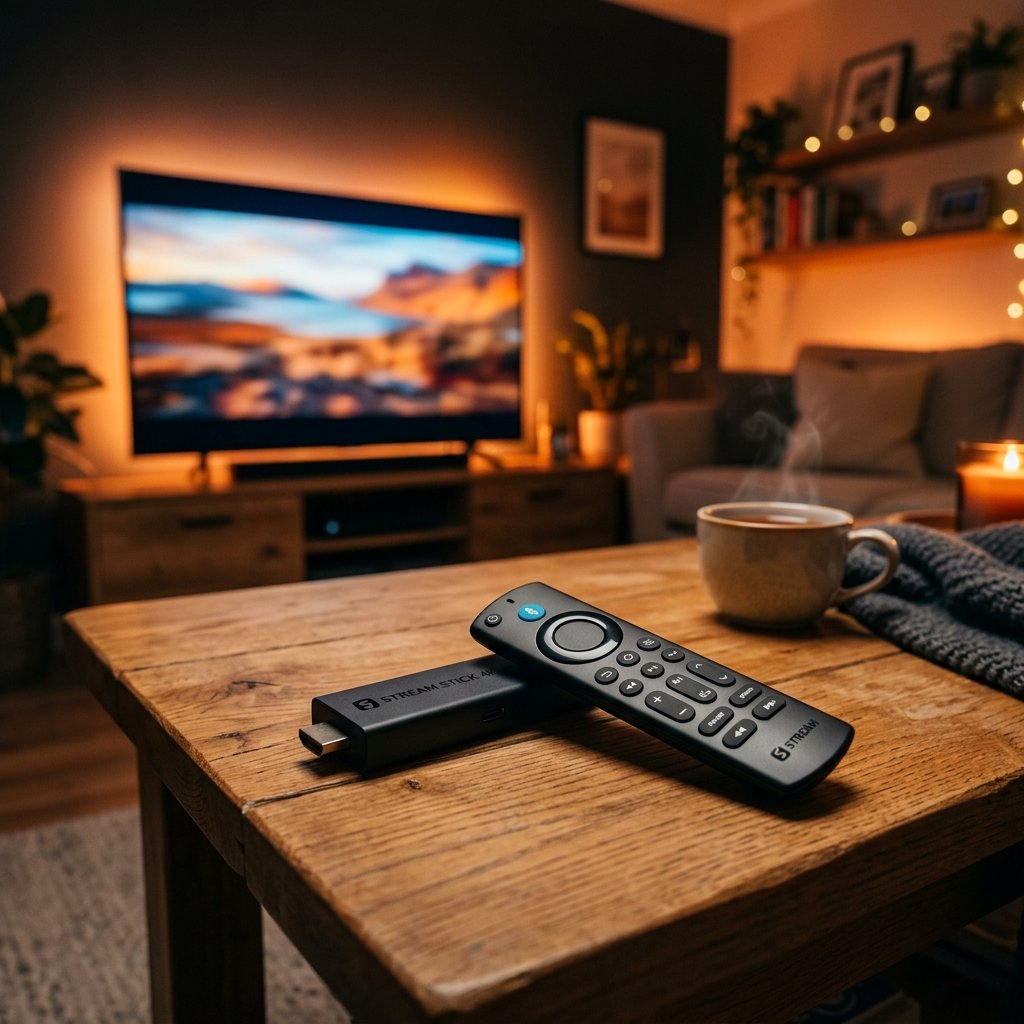
Setting up an IPTV service on an Amazon Firestick requires sideloading a third-party media player application, as Amazon frequently removes official IPTV players from its Appstore. To do this, users must enable “Install Unknown Apps” within the Firestick’s Developer Options, install the official “Downloader” application, and use it to download the APK file of an IPTV player like IPTV Smarters Pro or Xtream IPTV. Once installed, users simply enter their IPTV provider’s M3U link or Xtream Codes API credentials to begin streaming.
Key Takeaways
- Sideloading is Essential: You must use the Downloader app to install standard IPTV players directly via APK files.
- Developer Options: “Apps from Unknown Sources” must be enabled in your Fire TV settings before you can install third-party software.
- Hardware Efficiency: The Amazon Firestick 4K and 4K Max are currently the most cost-effective, high-performance devices for running heavy IPTV playlists without menu lag.
- VPN Recommendation: Because you are streaming via third-party servers, using a Virtual Private Network (VPN) is highly recommended to prevent your ISP from throttling your internet speeds during live broadcasts.
- No Built-in Content: A Firestick and a player application do not provide TV channels; you must purchase a subscription from an IPTV provider separately.
Introduction: The Firestick and IPTV Revolution in 2026
As traditional cable television continues to price out the average consumer, millions of viewers across the globe have transitioned to Internet Protocol Television (IPTV). However, having a great IPTV subscription is only half the battle; you also need a reliable, fast, and affordable device to stream it on. In 2026, the Amazon Fire TV Stick (Firestick) remains the absolute king of the cord-cutting revolution.
Why is the Firestick so popular among IPTV users? It comes down to its operating system. Fire OS is essentially a modified version of Android. This means that even if Amazon decides to remove a popular streaming application from its official store, users have the freedom to bypass the store and install the software manually—a process known as “sideloading.”
If you are just getting started and want to understand the legal landscape of this technology, we highly recommend reading our deep dive on Is IPTV Legal: The Definitive Guide for 2026. Assuming you have already secured a reliable provider—perhaps after consulting our guide on Choosing the Best IPTV Service in the UK (2026)—this comprehensive tutorial will walk you through exactly how to prepare your Firestick, sideload the necessary applications, and configure your entertainment hub for the best possible viewing experience.
Step 1: Preparing Your Firestick (Enabling Developer Options)
By default, Amazon locks down the Firestick to prevent users from installing applications outside of the official Appstore. To install an IPTV player, we first need to unlock this restriction. Amazon has slightly hidden this menu in recent updates, but it is very simple to access.
- Turn on your television and navigate to the Home Screen of your Firestick.
- Scroll to the far right and select the Settings icon (the gear wheel).
- Scroll down and click on My Fire TV.
- Look for Developer Options.
Note: If you do not see Developer Options, click on About. Highlight the name of your device (e.g., “Fire TV Stick 4K”) and click the “Select” (center) button on your remote seven times quickly. A message at the bottom will say, “No need, you are already a developer.” Press the back button, and Developer Options will now be visible.
- Click on Developer Options.
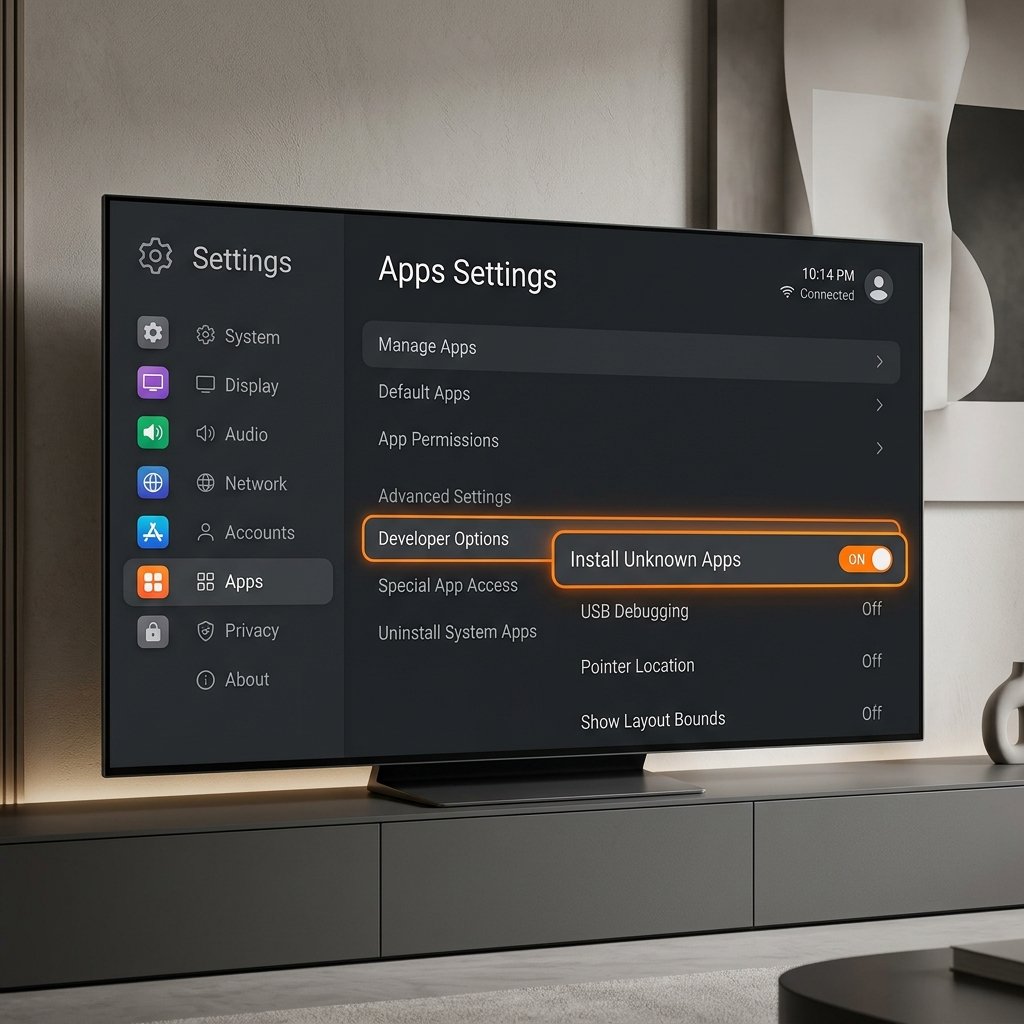
- Select Install Unknown Apps (or “Apps from Unknown Sources” on older models).
- Keep this screen in mind, as we will return to it shortly to grant permission to our downloading tool.
Step 2: Installing the Downloader Application
Since we cannot use a standard web browser to download files easily on a television, we need a bridging application. The Downloader app is the industry standard for this task, and thankfully, it is officially supported by Amazon.
- Press the Home button on your remote.
- Navigate to the Find menu and click on Search.
- Type “Downloader” using the on-screen keyboard.
- Select the Downloader app (it has a bright orange logo with a downward-pointing arrow).
- Click Download or Get.
- Once installed, do not open it yet.
- Go back to Settings > My Fire TV > Developer Options > Install Unknown Apps, and toggle the Downloader app to ON. You have now given the app permission to install files.
Step 3: Sideloading Your Preferred IPTV Player
Now that the Firestick is prepped, we can install the actual media player. There are hundreds of players available, but applications that utilize the Xtream Codes API are generally the fastest and most reliable. For this tutorial, you can choose whichever player you prefer. If you need recommendations, check out our reviews for IPTV Smarters Pro, SmartOne IPTV, or Xtream IPTV Player.
- Open the Downloader app from your home screen.
- Click “Allow” if it asks for permission to access photos, media, and files (this is required for it to save the downloaded app).
- Click on the URL search bar in the middle of the screen.
- Enter the direct download link (APK link) or a numerical shortcode for your chosen IPTV player.
- For example, typing
iptvsmarters.com/smarters.apkwill directly download the Smarters Pro application. - Click Go. The app will connect to the server and begin downloading the file.
- Once the download is complete, a prompt will automatically appear asking if you want to install the application. Click Install.
- Once finished, click Done (not Open). You will be returned to Downloader. Click Delete to remove the installation file and save precious storage space on your Firestick.
Step 4: Adding Your IPTV Subscription Details
With your media player installed, the final step is to connect it to the service you purchased.
- Launch your newly installed IPTV player from your Firestick’s “Apps & Channels” list.
- You will typically be presented with a login screen asking for either an M3U URL or Xtream Codes API.
- We highly recommend using the Xtream Codes API if your provider supports it. It is significantly faster and organizes VOD (Video on Demand) content much better than a raw M3U file.
- Enter the details provided in your welcome email:
- Name: Any nickname (e.g., “Living Room”)
- Username: Provided by your service
- Password: Provided by your service
- URL/Portal: The server address provided by your service (usually looks like http://provider.com:8080)
- Click Add User or Login.
- Allow the application a few moments to download the channel list, movie posters, and the Electronic Program Guide (EPG).
Step 5: Crucial Optimization – Utilizing a VPN
One of the most common issues users face when streaming IPTV on a Firestick is buffering, especially during high-demand events like live football matches or PPV fights. If your device has a strong Wi-Fi connection but you are still experiencing stuttering, the culprit is almost certainly your Internet Service Provider (ISP).
ISPs routinely throttle (intentionally slow down) internet traffic that they identify as heavy streaming from unverified third-party servers. To bypass this, you must use a Virtual Private Network (VPN).
A VPN encrypts your internet connection, masking your activity from your ISP. Because they cannot see what you are doing or where you are connecting, they cannot throttle your speeds. Furthermore, a VPN protects your digital privacy, ensuring your viewing habits remain anonymous. You can easily find top-tier VPN applications directly in the official Amazon Appstore. For a deeper dive into stopping stream lag, read our troubleshooting guide: The Real Reason Your IPTV Buffers During Live Sports (And How to Fix It).
Conclusion
Transforming an Amazon Firestick into a dedicated IPTV powerhouse is a straightforward process that takes less than ten minutes. By bypassing the restricted official store and sideloading a high-quality media player, you gain complete control over your home entertainment experience. Remember to keep your Firestick’s storage relatively clear, connect to a robust VPN, and pair your setup with a premium provider to enjoy seamless, buffer-free streaming in 2026.
Frequently Asked Questions (FAQ)
Can I break my Firestick by sideloading apps?
No. Sideloading simply means installing an application from outside the official Amazon Appstore. As long as you are downloading well-known, reputable IPTV players (like TiviMate or Smarters Pro), your device is completely safe. Sideloading does not “jailbreak” or root the device.
Why is my Firestick saying “Storage Full” when downloading an IPTV player?
Firesticks have limited internal storage (usually 8GB). If you have too many official apps or games installed, you will not have room for the IPTV player’s APK file or the cached data from your TV guide. Uninstall unused applications to free up space.
Do I need a 4K Firestick for IPTV?
While not strictly mandatory, it is highly recommended. The standard Firestick Lite has less RAM and a slower processor. A Firestick 4K or 4K Max processes heavy M3U playlists and multi-screen streaming much faster, resulting in zero menu lag and faster channel zapping.
Why did my IPTV app disappear from my Firestick home screen?
Sometimes Fire OS updates can hide sideloaded applications from the main banner. You can always find your IPTV player by clicking the “Apps” icon (three squares and a plus sign) on your home screen, scrolling to the bottom of the list, and moving the app back to the top row.
Ready to Upgrade Your Streaming?
Stop missing your favorite live events and VODs. Get instant, anti-freeze access to Neo IPTV UK's premium library right now.