

SS IPTV (Simple Smart IPTV) is a completely free, multi-purpose media player designed primarily for Smart TVs, including LG webOS, Samsung Tizen, and Android-based displays. It does not contain any built-in channels or subscription services. To stream live television or VODs, users must generate a temporary “Connection Code” within the app’s settings and enter it on the official SS IPTV web portal to upload their own M3U playlist. Because it is entirely free and natively supports legacy Smart TVs, it remains one of the most widely used IPTV players globally.
Key Takeaways
- 100% Free Forever: Unlike most modern IPTV players, SS IPTV does not charge a one-time activation fee or a yearly subscription.
- No Included Content: The application is simply a blank video player. You must provide your own M3U playlist from a third-party IPTV service.
- Connection Code System: Playlists are added remotely via a browser using a unique, temporary connection code generated by your TV.
- Legacy Support: It is highly optimized for older Smart TVs that may struggle to run heavier, graphic-intensive modern applications.
- Cloud Sync: Users can manage multiple playlists through their SS IPTV web account and sync them seamlessly to their devices.
Introduction to SS IPTV in 2026
In the rapidly expanding world of cord-cutting in 2026, the market is flooded with premium, subscription-based media players. However, not every user wants to pay an activation fee just to use a software interface. Enter SS IPTV, which stands for Simple Smart IPTV. Originally developed as a localized app for Russian Smart TV users, it quickly exploded into a global phenomenon due to one massive advantage: it is completely free.
SS IPTV is a veteran in the streaming space. While newer applications boast flashy interfaces and cinematic graphics, SS IPTV focuses on bare-bones performance, broad compatibility, and reliability. It is crucial to understand that, like all legal media players, SS IPTV is strictly an empty shell. It does not host, sell, or broadcast any movies, live sports, or television channels. To utilize the app, you must possess an active subscription from a provider. If you are currently looking for a reliable stream, we highly recommend reviewing our guide on Choosing the Best IPTV Service in the UK (2026).
In this definitive guide, we will break down the features of SS IPTV, explain its unique playlist upload system, and provide a step-by-step tutorial on how to install and configure it on your home television.
Key Features of SS IPTV
While it may lack the polished, Netflix-style aesthetic of premium competitors like SmartOne IPTV or IPTV Smarters Pro, SS IPTV brings a robust set of essential features to the table that make it an enduring favorite:
- Cloud-Based Playlist Management: Instead of typing long, complicated M3U URLs directly into your TV with a remote control, SS IPTV uses a cloud portal. You upload your links on their website, and it pushes the content directly to your television.
- Lightweight Architecture: Because the app is fundamentally a “Simple” player, it uses very few system resources. This makes it incredibly fast and responsive, particularly on older generation Smart TVs (2015-2019 models) that tend to lag or crash when running heavier modern apps.
- Extensive Language Support: The interface is fully translated into dozens of languages, catering to its massive global user base.
- Parental Controls: Users can easily lock specific channels or adult-oriented VOD folders behind a custom PIN code to ensure safe family viewing.
- Custom UI Themes: While the default interface is somewhat dated, the app allows users to toggle between a few different background themes and color schemes to personalize the dashboard.
- Video Player Stability: The internal media player is highly reliable for standard HD and Full-HD streams. If you encounter stuttering during live sports, it is rarely the app’s fault. You can learn how to troubleshoot network issues with our guide: The Real Reason Your IPTV Buffers During Live Sports (And How to Fix It).
Pricing: The Best Free Player Available
The pricing structure of SS IPTV is its biggest selling point. The application is 100% free to download, install, and use.
There are no 7-day trials, no lifetime MAC address activation fees (like you see with SIPTV), and no hidden in-app purchases to unlock premium features. The developers maintain the app entirely for free, making it the perfect entry-level player for users who are new to the world of IPTV and want to test out a provider’s M3U link without committing financial resources to a player app.
How to Install SS IPTV
Because SS IPTV has been around for so long and operates strictly as a legal media player, it is natively available on the official app stores of the biggest television manufacturers.
1. Installing on LG Smart TVs (webOS)
LG has fully embraced SS IPTV, making it incredibly easy to find.
- Press the Home button on your LG remote.
- Navigate to the LG Content Store (or “Apps” on newer webOS versions).
- Click the Search icon (magnifying glass) at the top of the screen.
- Type “SS IPTV”.
- Select the app (it usually has a distinct, brightly colored logo) and click Install.
- Once installed, launch the application.
2. Installing on Samsung Smart TVs (Tizen OS)
Note: Samsung’s app store policies vary heavily by region. In many European and American regions, SS IPTV is available directly in the store.
- Press the Smart Hub or Home button on your Samsung remote.
- Navigate to Apps.
- Search for “SS IPTV”.
- If it appears, click Install.
(If it does not appear in your regional store, you may need to sideload it via a USB flash drive using the Tizen widget file provided on the official SS IPTV website).
3. Installing on Android TV
- Open the Google Play Store on your Android TV device.
- Search for “SS IPTV”.
- Click Install and open the application.
How to Upload Your Playlist to SS IPTV
The setup process for SS IPTV is unique. It does not use your MAC address to pair devices like other apps; instead, it uses a temporary “Connection Code.”
- Open the SS IPTV app on your television.
- Navigate to the Settings icon (the gear wheel, usually located in the top right corner).
- Select the General subsection.
- Click on the button that says Get Code.
- The screen will display a temporary, alphanumeric code (e.g., abc12). This code is only valid for a few minutes.
- Leave your TV on, and open a web browser on your smartphone or computer.
- Go to the official portal: SS IPTV Playlist Editor.
- Enter the code displayed on your TV into the Enter Connection Code box on the website and click Add Device.
- Once connected, select the External Playlists tab.
- Click Add Item.
- Give your playlist a name (e.g., “My Live TV”) and paste the M3U URL provided by your IPTV service into the Source field.
- Click Save.
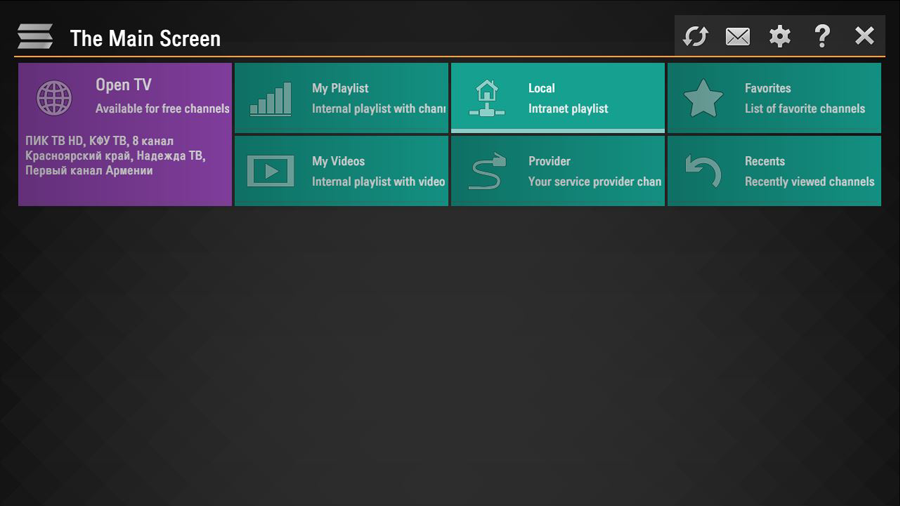
- Return to your television. Go back to the main menu of the SS IPTV app and click the Refresh icon (two circular arrows).
- A new folder with your playlist name will appear. Click it to load your channels.
Conclusion
While it may not win any awards for modern UI design in 2026, SS IPTV remains an absolute titan in the streaming community. Its unbeatable price point of zero dollars, combined with its lightweight architecture that breathes life into older Smart TVs, makes it a must-have application. Whether you are a cord-cutting veteran or a beginner testing out your first M3U link, SS IPTV provides a reliable, cloud-synced environment to enjoy your favorite media.
Frequently Asked Questions (FAQ)
Is SS IPTV really completely free?
Yes. SS IPTV is a completely free application. There are no trial periods, activation fees, or premium versions. You only pay for the third-party IPTV service you connect to it.
Does SS IPTV support Xtream Codes API?
Currently, SS IPTV relies heavily on standard M3U playlist URLs. While you can sometimes extract an M3U link from an Xtream Codes package, the app does not have a native, dedicated login screen for Xtream API (Username, Password, Server URL) like newer applications do.
Why is my Connection Code not working on the SS IPTV website?
Connection codes generated by the TV application are temporary and expire after a few minutes for security reasons. If your code is not working, click “Get Code” again on your TV to generate a fresh one and immediately enter it into the website.
Can I install SS IPTV on an Amazon Firestick?
While originally designed for Smart TVs, you can install the Android version of SS IPTV on a Firestick. However, because it is not in the Amazon Appstore, you must sideload the APK file using the Downloader application.
Ready to Upgrade Your Streaming?
Stop missing your favorite live events and VODs. Get instant, anti-freeze access to Neo IPTV UK's premium library right now.