
In the vast ecosystem of streaming applications, very few have stood the test of time quite like Smart IPTV (often abbreviated as SIPTV). Before the market was flooded with hundreds of generic media players, SIPTV was the original, undisputed king of streaming on smart televisions. Known for its incredible stability, lightweight code, and minimalist interface, it remains a favorite for purists who want a fast, reliable, no-nonsense television experience.
If you have recently purchased a premium IPTV subscription, getting it running on Smart IPTV requires a slightly different process than modern apps. Instead of logging in directly on your TV, SIPTV uses a unique MAC address system paired with a web portal. In this comprehensive 2026 guide, we will walk you through downloading the app, securely uploading your playlist, and tweaking the hidden settings to eliminate buffering forever.
Quick Summary / Key Takeaways:
- Smart IPTV (SIPTV) is a dedicated media player that requires users to upload an M3U playlist via an external web portal using their TV’s MAC address.
- The application does not include any channels; you must provide your own premium subscription.
- SIPTV offers a free 7-day trial, after which it requires a one-time activation fee of 5.49 EUR for the lifetime of that specific device.
- It is officially available on LG and Samsung Smart TVs, and can be side-loaded onto Amazon Firesticks and Android devices.
Table of Contents
- What is Smart IPTV (SIPTV)?
- Pricing: Is Smart IPTV Free?
- Step 1: Downloading and Installing the App
- Step 2: Uploading Your Playlist to Smart IPTV
- Step 3: Optimizing SIPTV for Zero Buffering
- Advanced Troubleshooting for SIPTV Errors
- The Verdict: Should You Use Smart IPTV in 2026?
- Frequently Asked Questions (FAQ)
What is Smart IPTV (SIPTV)?
Smart IPTV (SIPTV) is a lightweight, dedicated media player application that allows users to stream live television, VOD, and series by uploading a third-party M3U playlist to the developer’s web portal via their device’s unique MAC address.
Unlike newer applications (like IPTV Smarters Pro) that allow you to type your username and password directly into the TV screen using your remote, SIPTV completely separates the player from the playlist management. You install the blank app on your TV, which generates a 12-character MAC address. You then use your phone or computer to link your subscription to that MAC address. This keeps the app incredibly fast and prevents your TV’s processor from getting bogged down.
Pricing: Is Smart IPTV Free?
A common misconception is that downloading the app gives you free television. It does not. Furthermore, the app itself is only temporarily free.
When you first download SIPTV, you are granted a 7-day free trial to test the interface. Once those 7 days expire, the app will lock you out. To unlock it permanently, you must visit the official SIPTV website and pay a one-time activation fee of 5.49 EUR (roughly £4.70). This is a lifetime license, but it is tied strictly to the MAC address of the device you activated it on. If you buy a new TV, you will need to pay the fee again.
Step 1: Downloading and Installing the App
The installation method depends entirely on the operating system of your television or streaming device.
For LG Smart TVs (WebOS)
Press the “Home” button on your LG remote.
Navigate to the LG Content Store.
Use the search icon (magnifying glass) and type “Smart IPTV”.
Select the app (it has a dark grey icon with a TV and a play button) and click Install.
For Samsung Smart TVs (Tizen)
Press the “Smart Hub” button on your Samsung remote.
Navigate to Apps.
Search for “Smart IPTV”.
Click Download and add it to your home screen. (Note: If SIPTV has been removed from your regional Samsung store, you may need to change your TV’s region to the US or UK in the system settings).
For Amazon Firestick and Android TV
Because SIPTV is not in the official Amazon App Store, you must side-load it.
Install the Downloader app from the Amazon App Store.
Go to Firestick Settings > My Fire TV > Developer Options, and enable “Install Unknown Apps”.
Open Downloader and type in the official SIPTV APK URL: apk.siptv.app.
Click Go, allow the file to download, and click Install.
Step 2: Uploading Your Playlist to Smart IPTV
Now that the app is installed, you need to connect your Neo IPTV UK subscription to it.
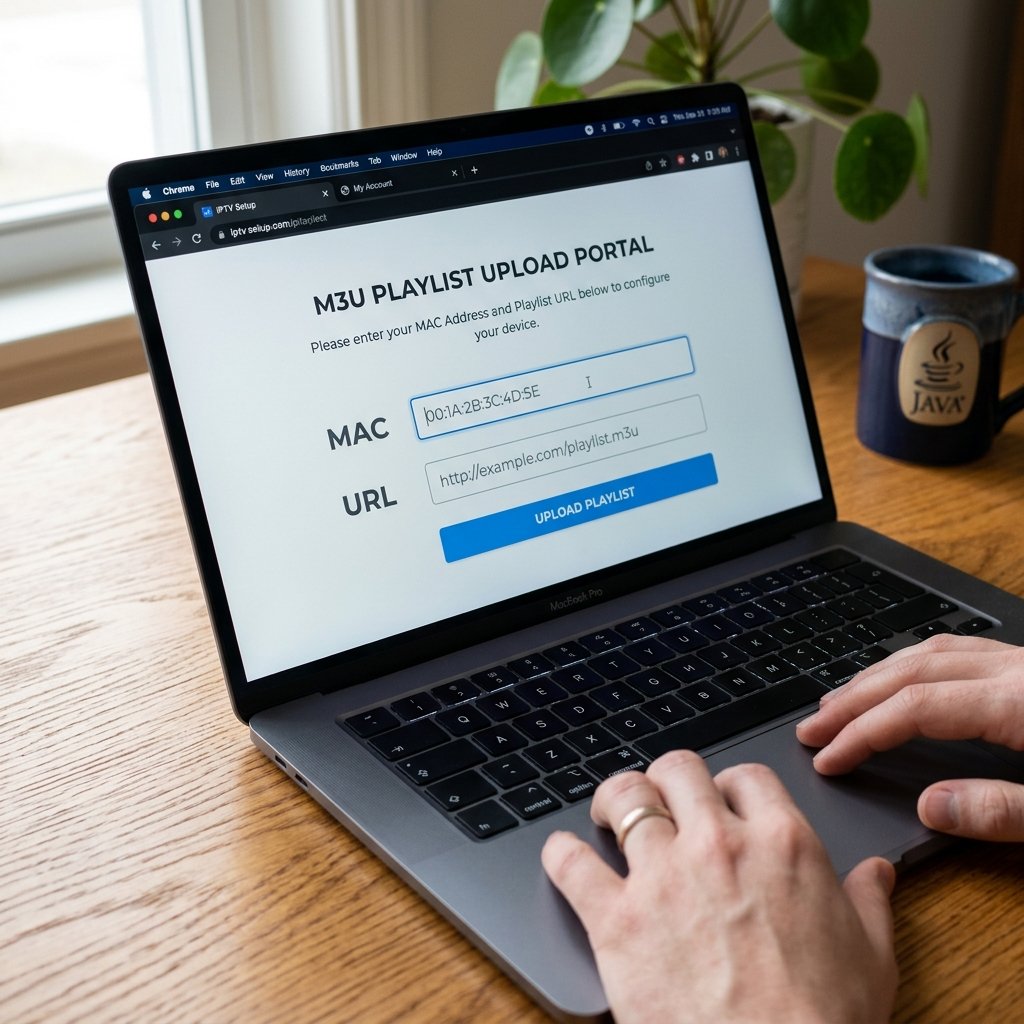
Find Your MAC Address: Open the Smart IPTV app on your TV. On the main loading screen, you will see a “MAC Address” displayed (it looks like this: A1:B2:C3:D4:E5:F6). Write this down.
Visit the Web Portal: Open a web browser on your smartphone or computer and go to the official portal: siptv.app/mylist/.
Enter Your Details: On the website, locate the section titled “Upload playlist files or external playlist URLs”.
Input the MAC: Type your TV’s MAC address into the “MAC” field.
Input the M3U URL: Paste the M3U Playlist URL provided by your streaming service into the “URL” field.
Save Online: Ensure the “Save online” box is checked (this allows your TV guide to update automatically) and click Send.
Restart the App: Close the app on your TV and open it again. Your channels will now begin to load.
Step 3: Optimizing SIPTV for Zero Buffering
Smart IPTV is exceptionally stable, but if you are experiencing freezing during live sports, there are two crucial tweaks you must make.
First, ensure your TV is connected to your router via an Ethernet cable rather than Wi-Fi. Second, open the SIPTV settings by pressing the “0” (zero) button on your remote. Look for the “Buffer Size” setting. By default, it is set to “Auto.” Change this to Large or Max. This forces the app to download a few extra seconds of the video feed in advance, creating a safety net that completely neutralizes minor internet drops.
Advanced Troubleshooting for SIPTV Errors
Even the best apps encounter glitches. Here is how to fix the most common SIPTV issues:
“Check Playlist URL” Error: This means the app cannot read your subscription link. Go back to siptv.app/mylist/, enter your MAC address at the bottom of the page, and click “Delete”. Then, re-upload your M3U link carefully, ensuring there are no spaces at the beginning or end of the URL.
MAC Address Changed: On some Android devices, the MAC address can dynamically change after a software update. If you paid for the app and suddenly lost access, you must email the SIPTV developer team with your old MAC and new MAC to have your license transferred.
Channels Disappeared: Simply press the “0” button to open settings and click “Reload Portal” to refresh the connection to your provider’s server.
The Verdict: Should You Use Smart IPTV in 2026?
If you are using an older Samsung or LG television, Smart IPTV remains one of the fastest and most responsive applications available. Its lack of heavy graphics means your TV menu will never lag. However, if you are using a modern, high-powered device like an NVIDIA Shield or a Firestick 4K Max, you might prefer newer apps that utilize the Xtream Codes API for an enhanced visual experience.
Whichever app you choose, the player is only as good as the network behind it. Join our premium network today to experience buffer-free 4K streaming the way it was meant to be watched.
Frequently Asked Questions (FAQ)
Is the Smart IPTV app legal?
Yes, the Smart IPTV application is 100% legal. It is merely a blank media player, identical in nature to VLC Player. It does not contain, host, or broadcast any media or copyrighted content.
Does Smart IPTV include live channels?
No, SIPTV does not include any live TV channels, movies, or subscriptions. You must purchase a streaming plan from a third-party provider and upload the provided M3U playlist to the app.
Do I have to pay monthly for Smart IPTV?
No. After the initial 7-day free trial, there is only a single, one-time activation fee of 5.49 EUR for the lifetime of that specific device. There are no recurring monthly charges for the app itself.
Can I transfer my SIPTV license to a new TV?
No, the official policy is that the activation fee is permanently tied to the unique MAC address of the device it was purchased on. If you buy a new television, you must activate the new TV’s MAC address separately.
Why is my Smart IPTV TV Guide (EPG) blank?
If your EPG is blank, go to the SIPTV website, delete your current playlist, and re-upload it while ensuring the “Save online” checkbox is ticked. This forces the app to actively pull the guide data from your provider’s server.
Ready to Upgrade Your Streaming?
Stop missing your favorite live events and VODs. Get instant, anti-freeze access to Neo IPTV UK's premium library right now.