
As the digital broadcasting landscape continues to expand in 2026, finding a reliable, fast, and visually appealing media player is crucial for cord-cutters. While massive names like Smarters Pro and Tivimate often dominate the conversation, a powerful alternative has rapidly climbed the ranks to become a fan favorite: the IPTV Stream Player app.
Known for its incredibly vibrant user interface, deep customization options, and flawless handling of massive 4K VOD libraries, this application offers a premium viewing experience without the lag associated with older software. If you have recently secured a high-quality premium IPTV subscription, this app might just be the perfect vessel for your content. In this comprehensive setup guide, we will walk you through downloading the player, configuring your server login, and tweaking the hidden settings to guarantee a buffer-free sports weekend.
Quick Summary / Key Takeaways:
- IPTV Stream Player is a versatile, free-to-download media player application designed for Android devices, Firesticks, and Smart TVs.
- The app does not provide its own content; users must connect it to a paid subscription using the Xtream Codes API or an M3U playlist.
- It is highly regarded for its customizable user interface, built-in dual media players (ExoPlayer and VLC), and robust parental controls.
- The setup takes less than five minutes and automatically syncs your Live TV, Movies, Series, and Electronic Program Guide (EPG).
Table of Contents
What is IPTV Stream Player?
IPTV Stream Player is a customizable, high-performance media delivery application that allows users to seamlessly stream live television, video-on-demand (VOD), and series by connecting to their provider’s database via the Xtream Codes protocol.
Functioning essentially as a beautifully designed empty shell, the application relies entirely on the user to provide the “fuel.” Once you input your provider’s credentials, the app works its magic by downloading the server’s data and organizing it into a highly visual, cinematic dashboard. It pulls IMDb ratings, movie posters, cast information, and dynamically updates your TV guide in the background so you never miss a live broadcast.
Key Features: Why Choose This App?
With so many players available on the Amazon App Store and Google Play Store, what makes this specific application worth downloading?
Stunning User Interface: While many apps look like outdated spreadsheets, this player utilizes a modern, Netflix-style layout that is easy to navigate with a standard remote control.
Integrated Dual Players: It comes with both ExoPlayer and VLC Player hardcoded into the software. This means if a specific 4K movie has an audio-sync issue on one player, you can instantly switch the underlying engine with the press of a button to fix the codec error.
Global Search Function: A powerful master search bar allows you to type in an actor’s name or a movie title, instantly scanning thousands of live channels and VOD folders to find exactly what you want.
Multi-DNS Support: It allows users to input multiple server URLs, making it an excellent choice for users who maintain backup subscriptions.
Step 1: Downloading IPTV Stream Player
The installation process is incredibly straightforward, especially if you are using an Android-based ecosystem.
For Android TV and Google TV
If you are using an NVIDIA Shield, a modern Sony Smart TV, or a generic Android TV box, the application is fully officially supported.
Open the Google Play Store on your device.
Use the search function and type “IPTV Stream Player”.
Look for the official app logo (typically featuring a play button motif) and click Install.
Once downloaded, add it to your main home screen for easy access.
For Amazon Firestick / Fire TV Cube
Amazon frequently removes streaming apps from its official store, meaning you will likely need to side-load the application using the Downloader method.
From your Firestick home screen, navigate to the Amazon App Store and install the Downloader application.
Go to your Firestick Settings > My Fire TV > Developer Options, and turn on Install Unknown Apps for Downloader.
Open the Downloader app and enter the official APK download link for the player (you can easily find the direct numerical code for Downloader via a quick Google search).
Let the file download, click Install, and open the application.
Step 2: Adding Your Xtream Codes API
Now that the app is installed, you must connect it to the Neo IPTV UK network to unlock your content. Have the email containing your Username, Password, and Server URL ready.
Open the application. You will be greeted by the initial setup screen.
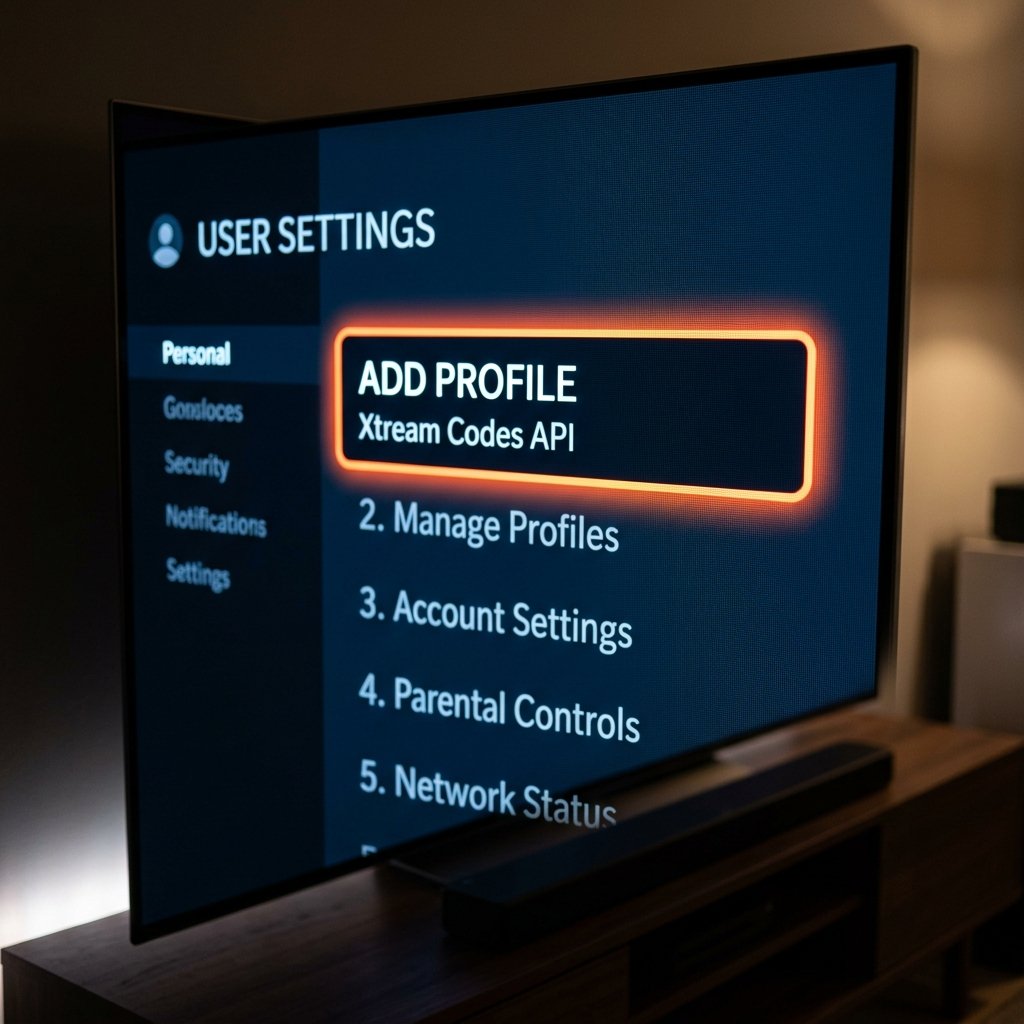
Select the option labeled “Login with Xtream Codes API”. We highly recommend this over the M3U Playlist option, as the Xtream API is significantly faster and allows for automatic EPG updates.
Profile Name: Enter a name for your profile (e.g., “Main Account”).
Username & Password: Carefully enter the credentials provided by your service. Remember, these are strictly case-sensitive.
Host / Server URL: Type in the exact URL provided by us. Ensure you include http:// or https:// and do not leave any invisible spaces at the end of the line.
Click “Add User” or “Login”. The app will now connect to the servers and spend roughly 30 to 60 seconds downloading the live channels, movies, and series data.
Optimizing the Player Settings for Zero Buffering
Once you are logged in, do not just start watching immediately. To ensure your weekend sports broadcasts run flawlessly, you need to configure the internal engine.
Navigate to the Settings menu (usually a gear icon in the corner). Look for the Player Selection category. By default, the app uses its native engine for everything. We recommend changing the “Live TV” player to Hardware Decoder (or VLC, if available). Hardware decoding forces your TV’s physical microchip to process the video stream, rather than relying on software, which dramatically reduces stuttering and freezing on high-bitrate 4K channels.
Next, locate the Automation settings. Ensure that “Auto-Update EPG” is checked and set to update every time the app opens. This guarantees your TV guide is never blank.
Troubleshooting Common Errors
“Invalid Credentials” / “Authorization Failed”: The server is rejecting your login. You have either made a typo (check the URL closely) or your subscription has expired.
Video Plays but No Audio: This is a common codec issue with newly released VOD movies. While watching the movie, click the “Settings” button on the video player overlay and switch the Audio Decoder from Hardware to Software (or vice versa).
App Keeps Crashing to Home Screen: Your Firestick or TV is running out of storage space or RAM. Go to your device settings, force stop the app, and clear its cache.
Maximize Your Setup Today
The IPTV Stream Player is a masterpiece of software engineering, but a beautiful app means nothing if the server behind it is constantly crashing. Don’t let a cheap reseller ruin your viewing experience.
Pair your new app with the most robust, buffer-free European datacenter network on the market. Join our premium network today and see exactly what true 4K entertainment looks like.
Frequently Asked Questions (FAQ)
Is the IPTV Stream Player app legal?
Yes, the application itself is 100% legal to download and install. It is a blank media player and does not contain, host, or broadcast any copyrighted material out of the box.
Why is my TV Guide (EPG) not showing any programs?
If your guide is blank, the app may have failed to download the EPG file during startup. Go to the app’s main settings, select “EPG,” and click “Update EPG Data” to manually force the server connection.
Does the app cost money?
No, the base version of the application is completely free to download and use. Some developers may offer an ad-free or “Pro” version for a small one-time fee, but the core functionality is free.
Can I use M3U links instead of Xtream Codes?
Yes, the player supports traditional M3U playlist URLs. However, using the Xtream Codes API is highly recommended as it provides faster loading times and much better interface organization.
Why does the stream buffer during live football matches?
Buffering is rarely caused by the app. It is almost always a result of your Internet Service Provider (ISP) throttling your streaming data, or your IPTV provider having weak servers. Using a premium service paired with a secure VPN will usually fix this issue entirely.
Ready to Upgrade Your Streaming?
Stop missing your favorite live events and VODs. Get instant, anti-freeze access to Neo IPTV UK's premium library right now.